This section is only accessible to super users.
Your Simply Voting account contains your invoice purchase history. To access your billing history, navigate to the Settings page and locate the Billing section.
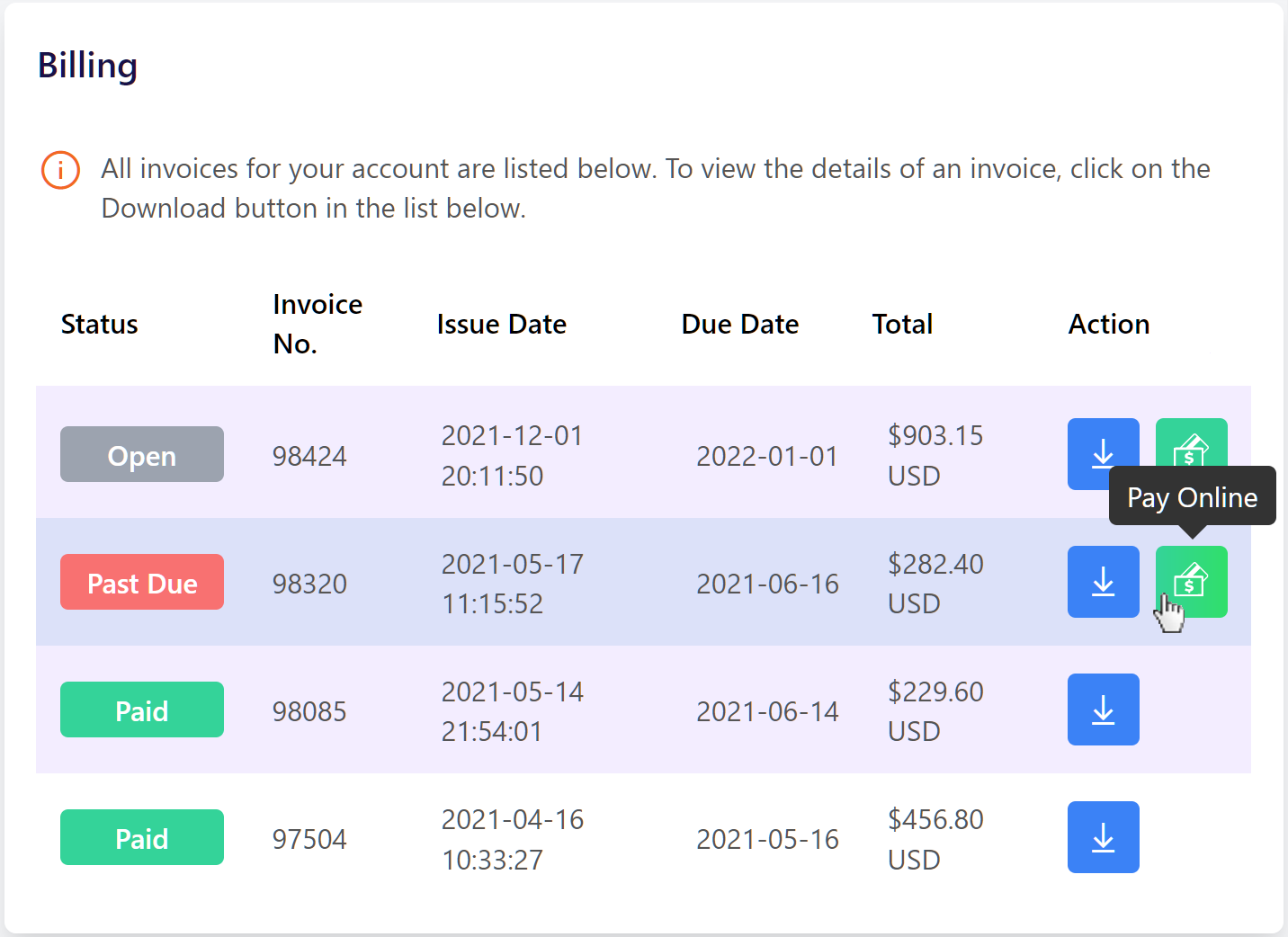
Once there, you will find a listing of all invoices along with other pertinent information, like: Status, Number, Issue Date, Due Date, Total and Currency.
Invoices can have:
Open status, which indicates the invoice has not yet come due.
Past Due status, which indicates the invoice was not paid prior to its due date.
Paid status, which indicates that invoice has been successfully paid.
For Single Election Credits or Annual Plans that are purchased self-service through the Voting System, such purchases generate Paid invoices and are available as receipts instantly.
If Simply Voting staff manually create an invoice for Single Election Credit or an Annual Plan, or for any other additional Premium Features or Premium Services, such purchases generate Open invoices.
Paying an Invoice Online
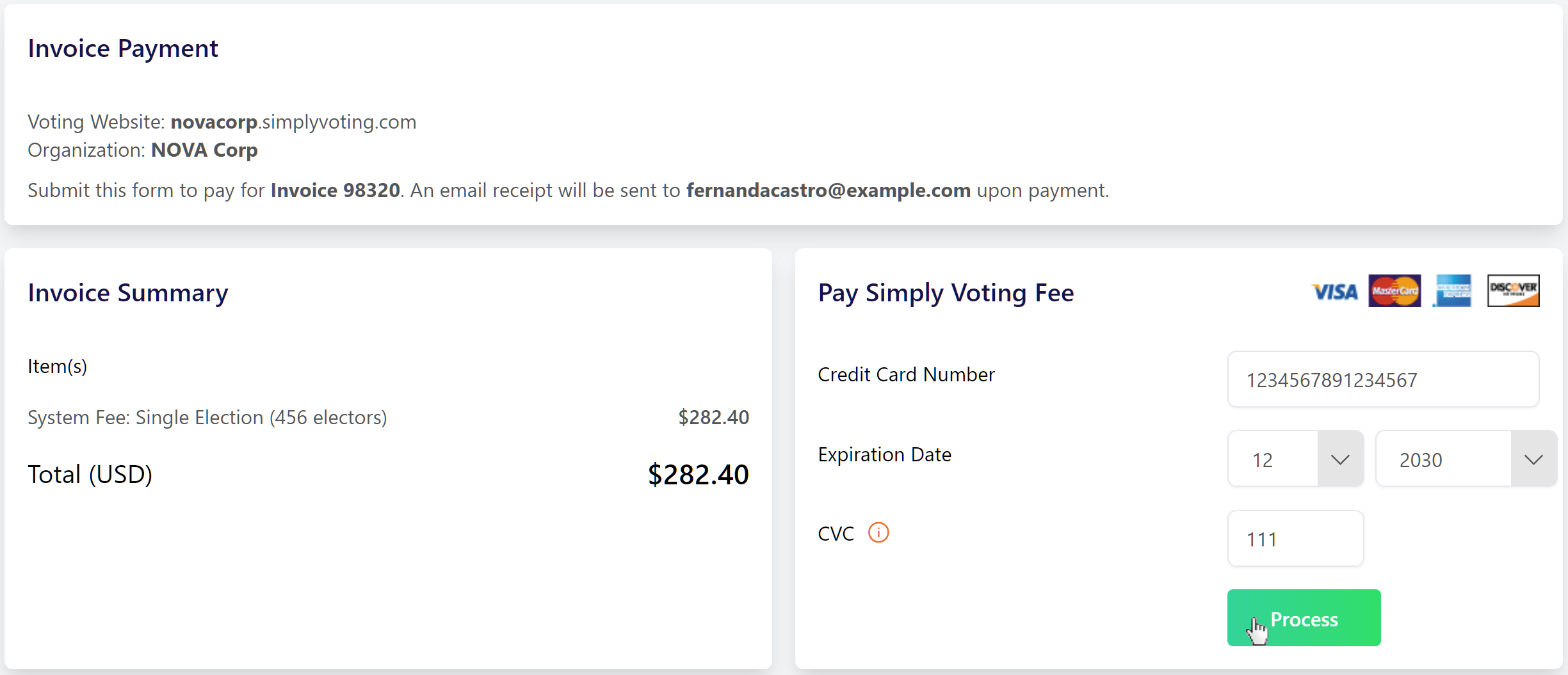
For some Open and Past Due statuses, a Pay Online button in the Action column may appear. This button will take you to the payment page. Simply fill out the required information and click the Process button to complete your purchase via credit card. Simply Voting does not store your credit card number.
No Pay Online button?
If you are unable to pay online, it may be due to the size of your purchase requiring a special processing fee. Customers can always pay by check or bank wire without additional credit card processing fees. Please contact support if you have any questions.
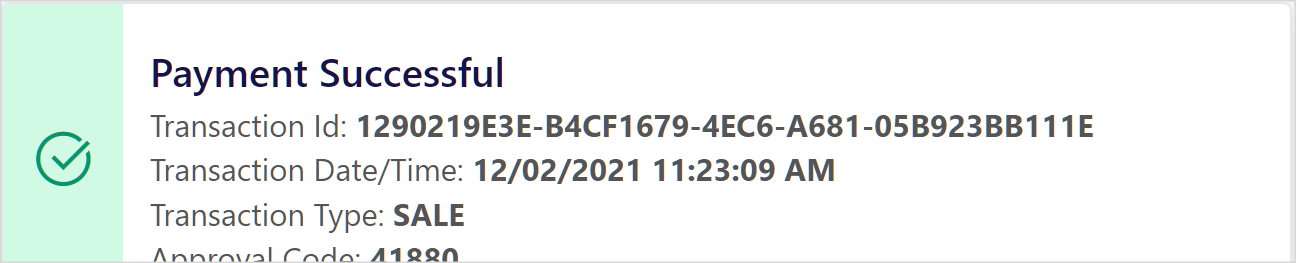
Upon successful payment, you will receive a green Success Message.
Accessing Invoice Details
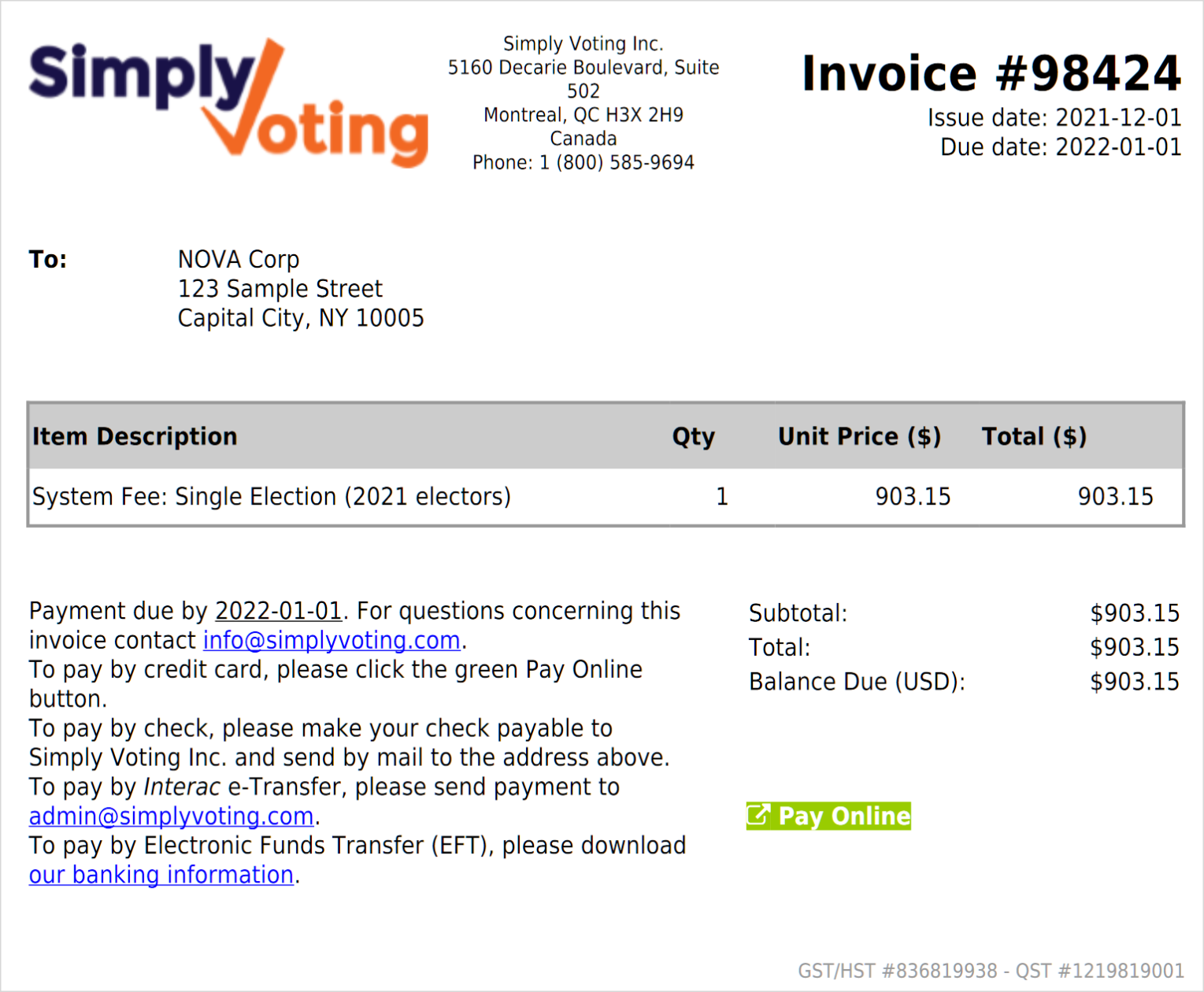
To access the details for any invoice purchase, use the Download button in the Action column. This generates a .PDF download with additional invoice information, as well as instructions on how to pay by check.