Adding Options
Options are the candidates or options electors may select. There is no limit to the number of options.
To add options to a question, navigate to the Questions page and click on the add options link in the Options column.
.png)
If the question already has options, the link in the Options column will indicate the number of options already added, as shown below.
To add, edit, or remove options, click on the link in the Options column of a given question.
.png)
You can add options manually (example below) if you have a small amount, or you can import from a CSV file if you have a large amount of options, or if you would like to upload simple descriptions with each option.
Adding Options Manually
To manually add multiple options at once, click on the Add Options button when inside of a question's options.
.png)
In the Add Options window that appears, simply click the green + button to add additional options.
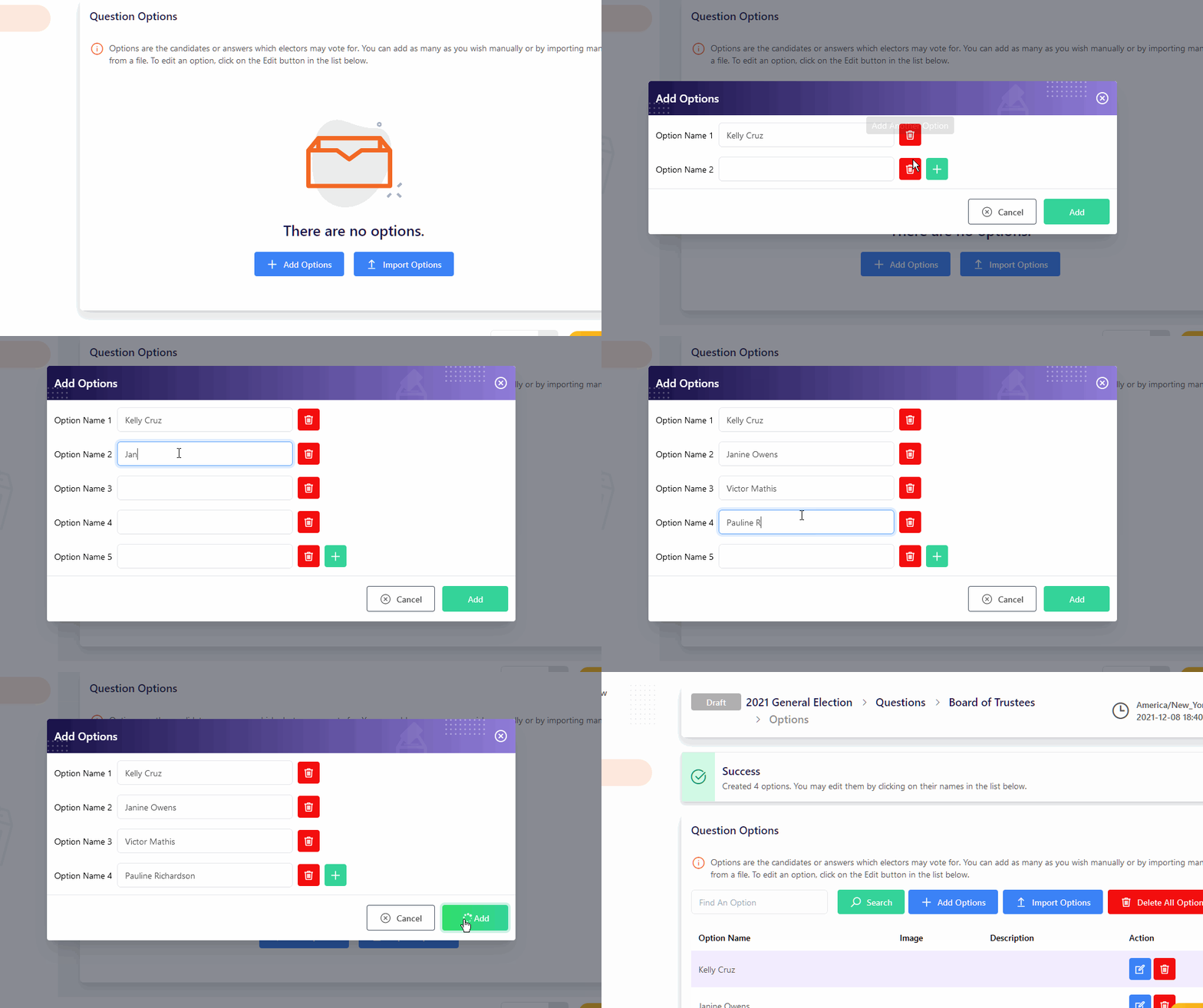
To delete unneeded fields, click the red bin button.
Once you have inserted the options you wish to add, click the Add button.
Importing Options From a CSV File
To Import multiple options, you must configure a CSV file using a common spreadsheet software with 2 columns in the following order:
Option Name (required): The option's name will appear on the ballot. Each option should have a unique name.
Option Description (optional): The option's description will appear on the ballot.
A properly formatted CSV file may look like the sample below.
In the CSV file, each column corresponds to a category of option data, and each row corresponds to a unique, individual option.
The order of data in the file will be the order upon import.

On the Question Options page, click on the Import Options button.
.png)
In the Import Options window that appears, browse and locate the desired file, then click the Import button.
Importing Options with Descriptions
Short descriptions are best for this method, since no formatting or paragraph styling is preserved upon import. If you have extensive styling needs, adding descriptions and formatting them manually or using pre-formatted files and linking to them is suggested.
Editing Options
After you’ve added one or more options, on the Question Options page, click on any option’s blue Edit button in the Action colum.
.png)
In the Option Details window that appears, you may adjust the Option Name, Option Description, and Option Image image.
.png)
Description Formatting Tips
Hover over a Formatting Button if you are unsure about its function. If you have a large amount of text, try using the “Fullscreen” button to make your setup easier.
Adding an image to an option
To add an image to an option, such as a candidate’s headshot, in the Option Details window, drag and drop an image file to the grey area below Image, or click on the grey area to upload an image from your device.
.png)
Image files must be in PNG, JPG, JPEG, or GIF format.
After choosing a file, the Image Cropper will appear. Drag the square frame to the desired image area, or adjust the frame by dragging its edges and corners as desired.
.png)
You may also rotate counterclockwise, rotate clockwise, center the image, zoom in, or zoom out using the blue buttons below the image.
Once you are satisfied with your selection, click the Crop button at the bottom of the Image Cropper window.
.png)
Once finished, click the Save button.
Reordering Options
After you have created multiple Options and if you selected Fixed Option Ordering, you may adjust the order and placement of options beneath a given Question.
To do so, simply click on the Reorder Options button to enter reordering mode.
.png)
Once you are in reordering mode, you can click anywhere on an Option and then drag and drop it into a new order.
Once finished, click the Save Changes button. A green Success Message will briefly display in the bottom right corner of your screen.
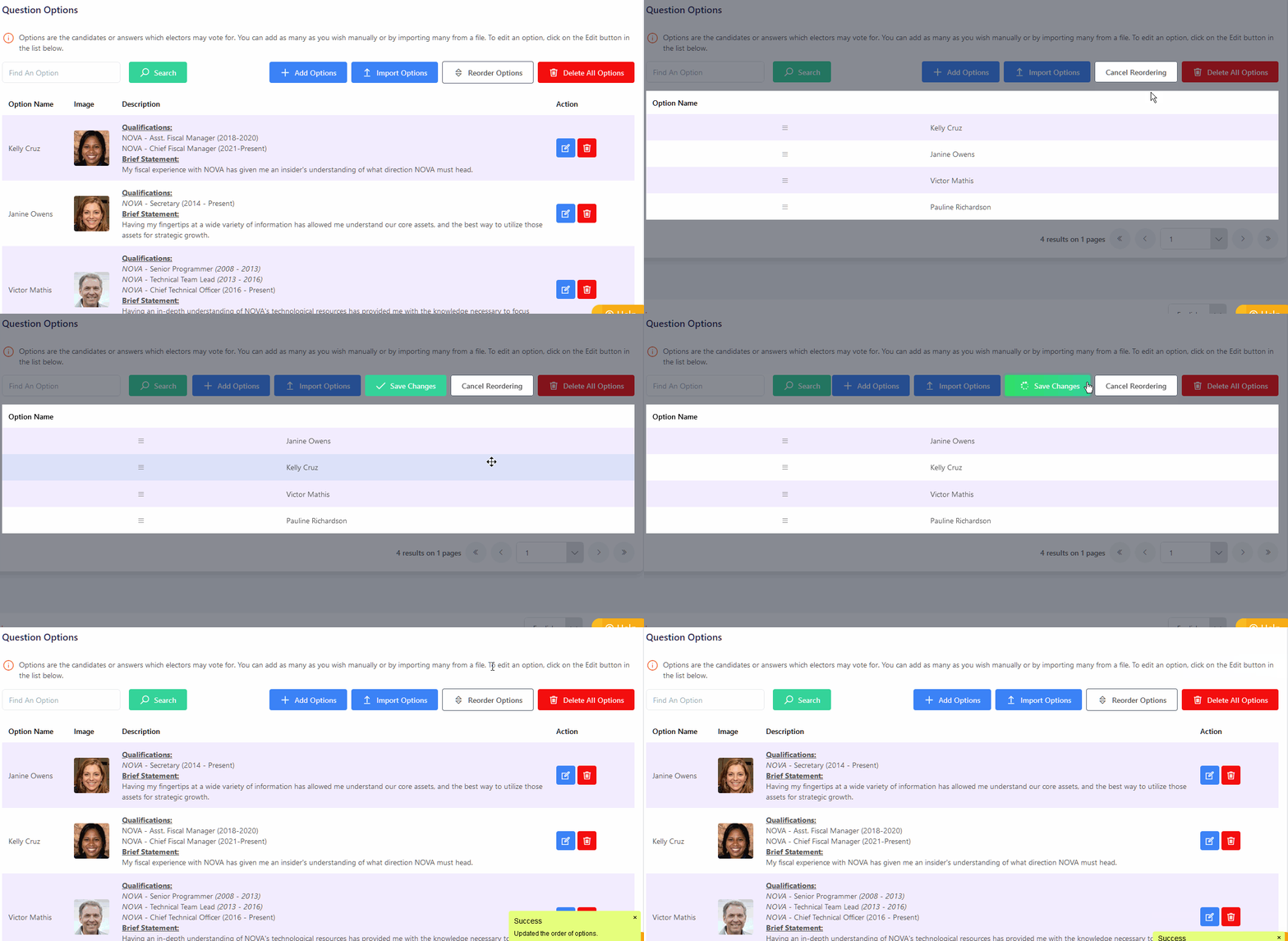
If you wish to exit the mode or to discard your order and return to the previously saved order, simply click the Cancel Reordering button.