To send an email to one or more specific elector(s), navigate to the Email Blast section of the election.
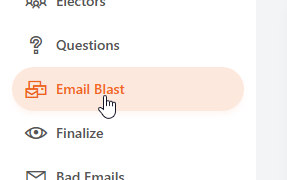
Step 1
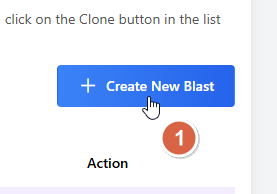
Click on the blue Create New Blast button.
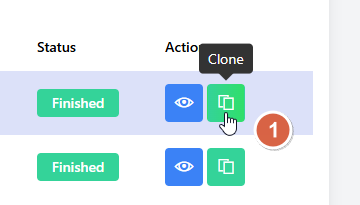
If you've already sent or scheduled an email blast in this election, you may want to begin by reloading its template by clicking on the green Clone button in the Action column.
Step 2
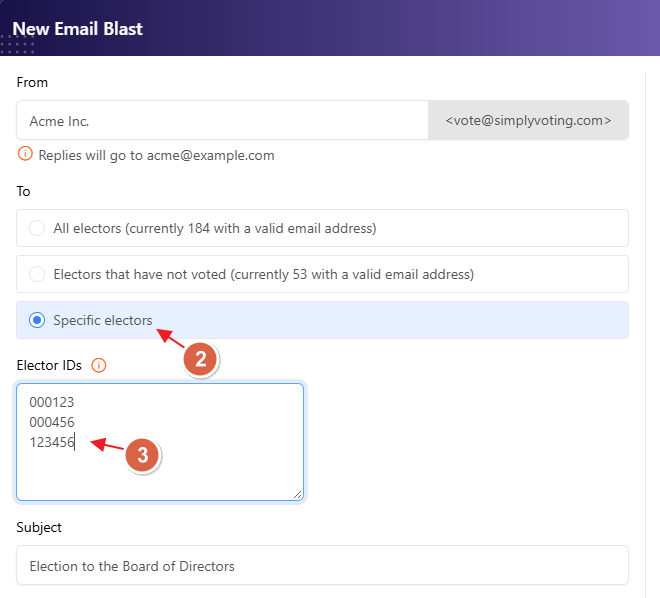
Select "Specific electors" from the To options.
Step 3
In the text box underneath Elector IDs, enter the Elector IDs (rather than email addresses) of the electors you wish to send the email to.
You can send to multiple specific electors at once by entering one Elector ID per line, as shown in the example above.
Step 4
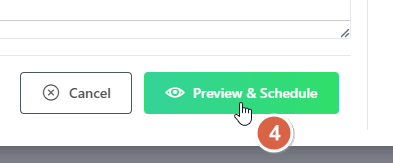
Click on the green Preview & Schedule button underneath the email Body.
Missing or Bad Email
If you've entered an Elector ID that is associated with a Bad Email or has no email address at all, you will receive the following error message:
This may be due to the elector having unsubscribed from email blasts, or a previous email having bounced from their email address. For more information on reviewing and addressing Bad Emails, please see Managing Bad Emails.

Step 5
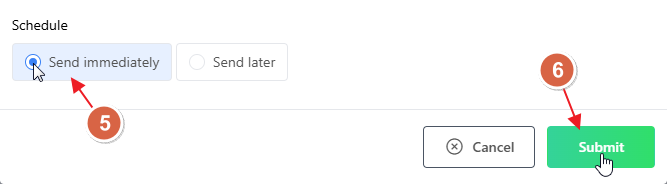
Under Schedule, select whether to Send immediately or Send later, depending on the need.
Step 6
Click on the green Submit button.
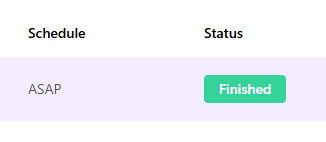
Once successfully sent, the email is added to the Email Blast history at the bottom of the Email Blast page, and shows a green Finished badge under Status.