This article covers the full kiosk lifecycle: creating kiosks, activating and deactivating them, and customizing the success message that voters see at a kiosk. For instructions on setting up and locking down the physical device, see Device Setup and Lockdown.
The Kiosks Page
To manage kiosks, navigate to the Settings page in the upper right and open the Kiosks section.
.png)
Creating a Kiosk
You must be a Super User or have Full Access to the Kiosk Management permission to create a kiosk. See About Kiosk Voting for details on permissions.
To create a kiosk, click the blue Create New Kiosk button.
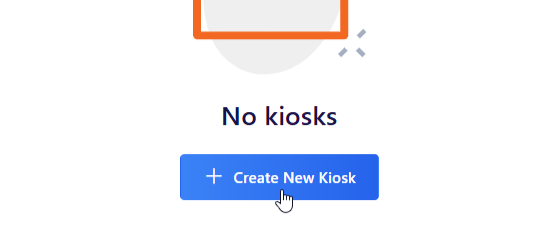
If kiosks have already been created, you’ll find the blue Create New Kiosk button above the list of kiosks.
.png)
In the window that appears, enter a Kiosk Name and click Create.
.png)
A few rules apply to kiosk names:
Each name must be unique.
Names are not case-sensitive, so "Lobby" and "lobby" are treated as the same name.
A name cannot be changed once the kiosk is created. If you need a different name, delete the kiosk and create a new one.
Names are limited to 255 characters.
The Kiosk List
Once created, the kiosk appears in a list along with any others you have created.
.png)
The list is sorted alphabetically by Name and includes the following columns:
Name: the name you gave the kiosk.
Last Seen: the last time the kiosk was active (see Understanding Last Seen below). This value is empty until the kiosk has been activated at least once.
Action: the controls available for that kiosk. When a kiosk is not active, this column shows an Activate button and a Delete button. When a kiosk is active, it shows a single Deactivate button instead.
Users with Read Only Access to Kiosk Management can view the list and each kiosk's Last Seen state, but the Action column controls are not available to them:
.png)
Understanding “Last Seen”
The Last Seen column shows the most recent time the kiosk was active, for example 2026-06-22 09:50:26.
Last Seen is updated whenever the kiosk page is loaded or refreshed while the kiosk session is in place. In practice this includes moments such as a voter logging in, submitting their ballot, or returning to the home page. It is not a continuous "heartbeat," so an active kiosk that simply has no one using it will show a Last Seen time from whenever it was last interacted with.
.png)
When the kiosk was last seen within the past hour, a small hot icon appears at the end of the timestamp. The icon indicates only that the kiosk was active within the last hour. It is not a health indicator: a kiosk that is working correctly but idle (for example, between voters) will lose the icon after an hour while remaining fully active. A missing icon does not mean the kiosk has a problem.
Activating a Kiosk
You must be a Super User or have Full Access to the Kiosk Management permission to activate a kiosk. See About Kiosk Voting for details on permissions.
To activate a kiosk:
On the device you want to use as the kiosk, log into the Election Manager as a Super User or a user with Full Access to the Kiosk Management permission.
Navigate to Settings and open the Kiosks page.
Click the green Activate button next to the kiosk name you want to use on this device.
.png)
A confirmation prompt appears:
.png)
When you click Activate, you are logged out of the Election Manager and the device is redirected to the home page of the voting website in kiosk mode.
In place of the regular website footer, the footer now shows the name of the kiosk, which confirms the kiosk is active and identifies which kiosk this device is running.
.png)
Because activation logs you out, plan to do any other Election Manager work before you activate, or use a separate device for management.
Deactivating a Kiosk
You must be a Super User or have Full Access to the Kiosk Management permission to deactivate a kiosk. See About Kiosk Voting for details on permissions.
While a kiosk is active, the Action column for that kiosk shows a single Deactivate button in place of the Activate and Delete buttons.
A kiosk session is held in place by a session cookie in the browser. There are two ways to end a kiosk session:
Recommended: Deactivate from the Election Manager
Deactivating a kiosk from the Election Manager is the reliable method. On the Kiosks page, click the orange Deactivate button next to the kiosk.
.png)
A confirmation prompt appears:
.png)
Deactivating this way properly ends the kiosk session and frees the kiosk name so it can be activated again, either on the same device or a different one. It has two further advantages:
It can be done remotely, from any device where you are logged into the Election Manager. You do not have to be standing at the kiosk.
It is recorded in the Account Log, including which user performed the deactivation. (See Kiosk Reporting for what is captured in the Account Log.)
After a kiosk has been deactivated this way, anyone landing on the voting website on that device sees the following message on the home page:
.png)
Closing the browser or shutting down the device
Closing all instances of the browser (every tab and window), or restarting or shutting down the device, purges the kiosk session cookie. On that device, kiosk mode is effectively gone.
However, the Election Manager cannot detect that the cookie was purged this way. As a result, the kiosk will still appear as active in the kiosk list, and its name will still be considered in use. Shutting a device down does not free the kiosk name on its own.
Important: If you close the browser or power off a device without deactivating in the Election Manager first, you will not be able to reactivate that kiosk name on any device until you deactivate it first in the Election Manager.
When closing up at the end of the day, or whenever you move a kiosk to a new device, it is recommended to deactivate it from the Election Manager first.
Reactivating After a Shutdown
If kiosk devices are shut down each evening (for example, to secure them overnight), you will need to reactivate kiosks the next day. Because shutting down does not free the kiosk name on its own, the cleanest routine is to deactivate from the Election Manager before shutting devices down, then reactivate when you set up again.
A device that is put to "sleep" rather than shut down keeps its kiosk session, as long as the browser is left untouched.
One Device per Kiosk Name
Each kiosk name can be active on only one device and browser at a time. This is enforced automatically: once a kiosk is active, its Activate button is no longer available anywhere, so the same name cannot be activated on a second device. To move a kiosk to a different device, first deactivate it from the Election Manager, then activate it on the new device.
Deleting a Kiosk
You must be a Super User or have Full Access to the Kiosk Management permission to delete a kiosk. See About Kiosk Voting for details on permissions.
A kiosk must be deactivated before it can be deleted. The Delete button appears only when the kiosk is not active, which is why an active kiosk shows only the Deactivate button in the Action column.
To delete a kiosk, click on the red Delete button in the Action column.
.png)
A confirmation prompt appears:
.png)
Deleting a kiosk does not change any data that has already been recorded. Votes already cast under that kiosk name remain in your reports and Election Log unchanged. However, once a kiosk is deleted, you cannot activate it again unless you create a new kiosk using the exact same name.
Kiosk Success Text
You must be a Super User to edit the Kiosk Success Text.
The Kiosks page includes a Kiosk Success Text editor that lets a Super User customize the message a voter sees after successfully voting at a kiosk.
.png)
Review the default wording and adjust or format the text as needed, then save your changes.
The success text is common to all activated kiosks and cannot be set individually per kiosk.